Hand an app to a client
Show a client the app with a preview link, give them access to just their app, or hand the app over: build it in their workspace, or export it with its signing key and move the store app to their developer account.
Updated Oct 12, 2026
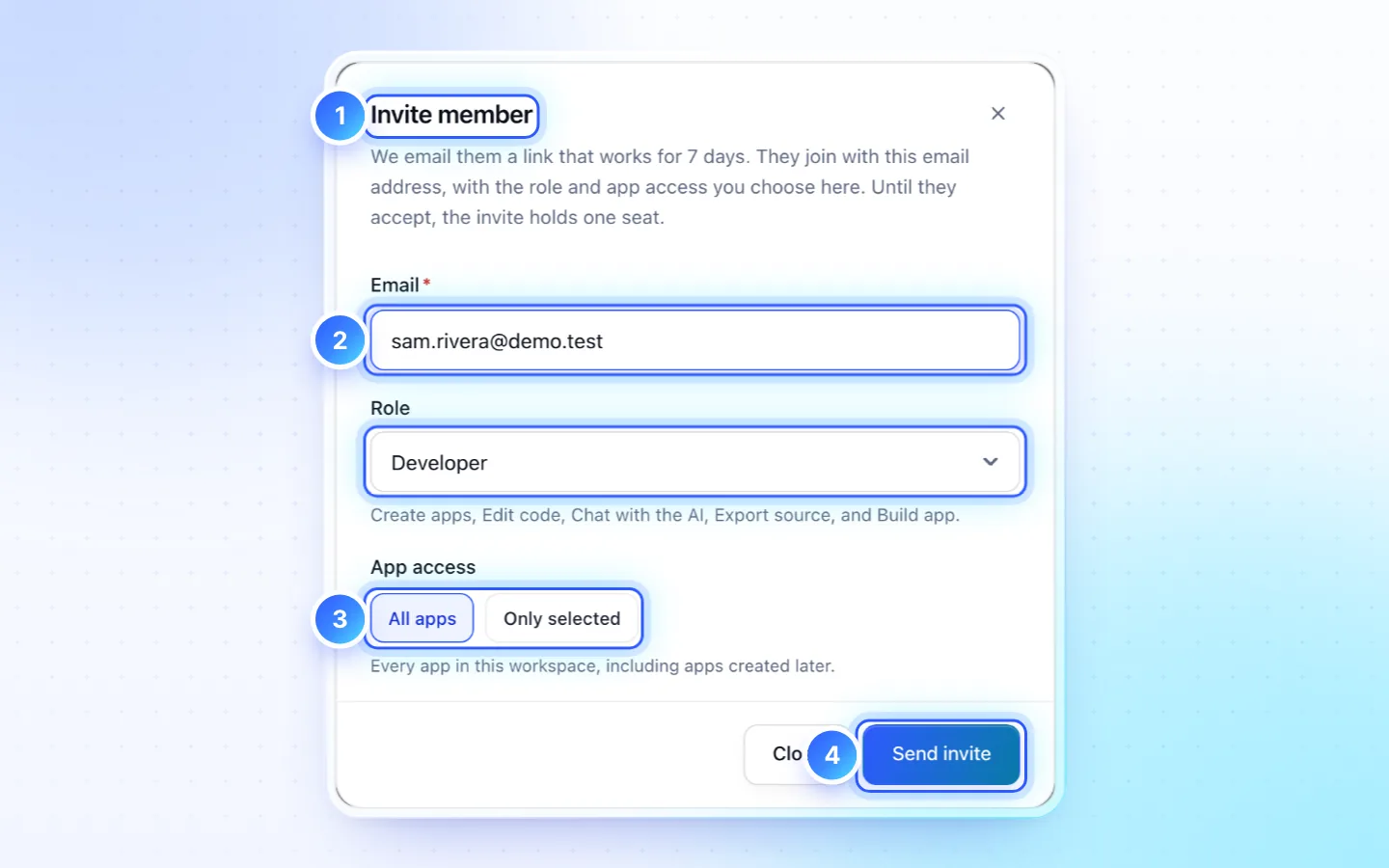
An app belongs to one workspace and cannot move to another yet. Hand over to a client… in an app's menu (Dashboard or Projects) opens each way below.
Let the client try it
Share web preview in the preview toolbar makes a link that works for 30 days. The client needs no account and no seat, and sees the running app, never the code. Turn the link off at any time.
Give the client their app only
- Open Team › Invite member, or Hand over to a client… › Invite to this app.
- Choose Viewer and, under App access, Only selected with their app ticked. Choose Developer instead for a client who should edit it.
- A viewer sees the preview, not the code or build files, and takes one seat. They see only the owner, the admins and who shares their app, never your other clients.
Build it in the client's workspace
The cleanest handover is none at all: the client signs up, picks a plan and invites you as an admin. You build their app there, with their store accounts and credits; when you are done they remove you or make you a viewer. Making someone the owner of your own workspace hands them every app in it.
Hand over an app from your workspace
- Download source (.zip) from the app's menu, Hand over to a client… or Code, and, for Android, the signing key backup (Build › Signing key › Advanced, owner only). Its
HANDOFF.mdlists what a build outside FluxNative must supply. - The client imports the ZIP in their workspace (Import app, a paid plan) and registers the signing key before their first Android build: Google Play refuses an update signed with another key.
- Move the store app to their developer account (below), then connect their keys under Publish.
- Republish the privacy policy and support pages from their app and update the store listing's links: the old pages belong to your copy.
- Push campaigns reach users from their next build; installed copies register with your app until they update.
- Only then delete your copy.
An import does not bring chats, version history, build history, web preview links, connected editors, store account links, or Server connections and secrets: connect them again.
Move a published app to the client's account
- App Store: the account holder starts an App Transfer in App Store Connect; Apple lists what blocks one.
- Google Play: follow Google's app transfer steps in Play Console.
Then, in the app's new workspace, connect the client's App Store Connect key or Google Play service account under Publish and link the app in the Connect step. FluxNative makes a distribution certificate and profile on the client's Apple team; keep the same Android upload key (the signing key backup) or ask Google for an upload key reset.
Keep a copy for your portfolio
Duplicate app in an app's menu makes Copy of … in the same workspace with the code only: no backend connections or secrets, store accounts, signing keys, push, web preview links, hosted pages, chats or history. It uses one app slot.
Related
Did this page help?