Preview
Click through your app in a device frame, switch route or device, edit text and styles in place, and share a link.
Updated Oct 15, 2026
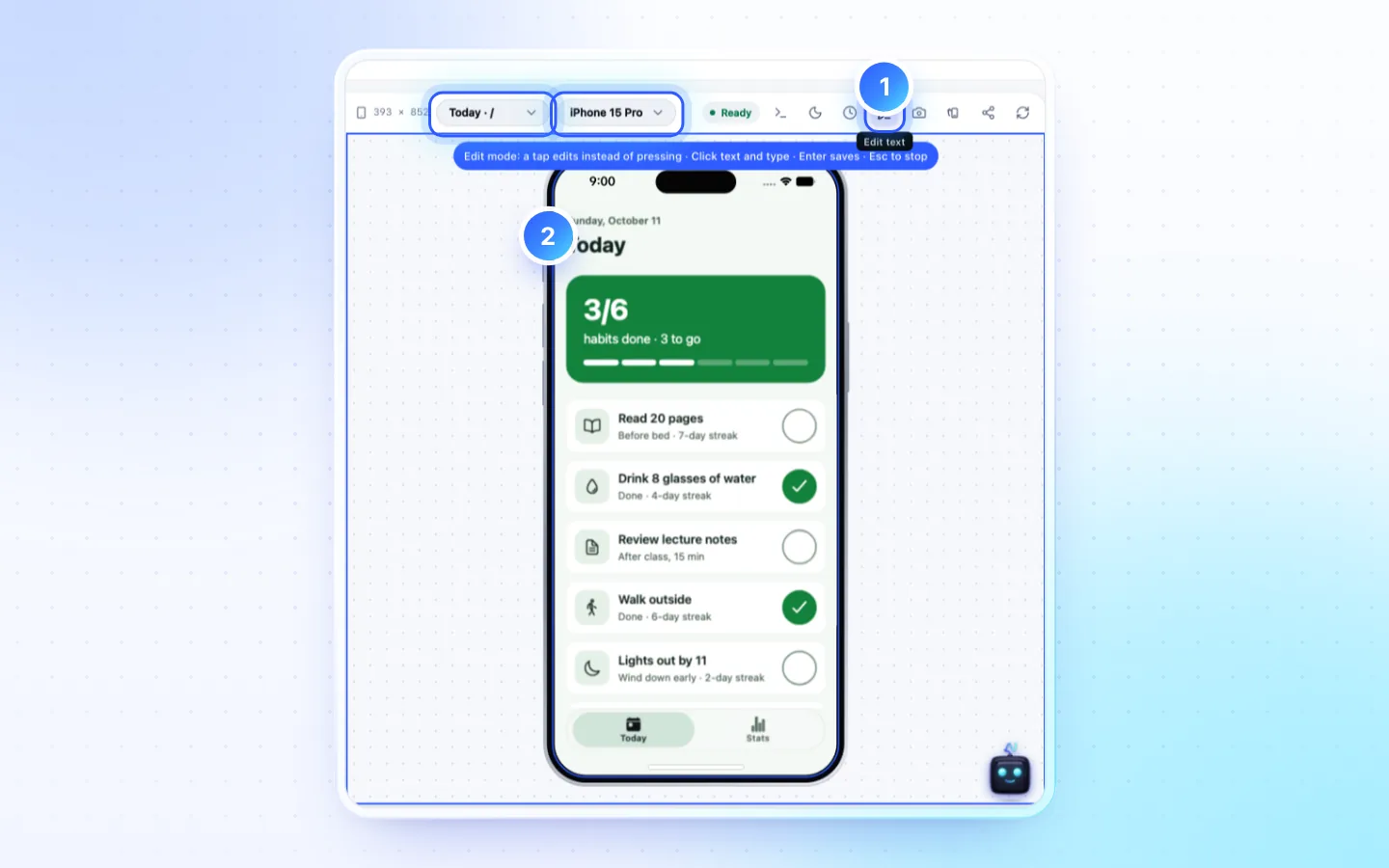
The toolbar
| Control | What it does |
|---|---|
| Route and device pickers | Jump to a screen; iPhone 15 Pro, iPhone Duo (Fold/Open), iPad mini or Pixel 8. |
| Console | Logs and errors from the running app. |
| Light / dark, Rotate | The app's theme and the orientation. |
| Simulated time | Starts the app at another date and time (+1 hour, +1 day, tomorrow). |
| Edit | Change text and styles right in the preview, free. |
| Share | A link anyone can open for 30 days. |
| Reload | Saves your edits, recompiles and reloads. During a turn it reloads the assistant's work so far and saves nothing. |
Edit text and styles
- Click the pencil, Edit. It stays in the toolbar at every width.
- Click a text, wait a moment, then type over it. Enter saves, Esc cancels. Text written in a list in the code (onboarding slides, a feature list) is edited where the list is written.
- Use the style bar under the device for colour, size, weight, padding and corners.
- On a shared component, choose Change all, or Only this one… (a chat turn).
Edits here cost no credits and need no chat turn. Undo, or ⌘Z (Ctrl+Z), takes them back one at a time, newest first. Text that comes from data or from code is refused with the reason. A viewer, or a member without the Edit code permission, can look but not edit, and Edit waits while a chat is changing the app.
Share a link
Press Share, then Create link: anyone with it can open the saved version for 30 days, no account needed. Update to latest keeps the same link, New link… replaces it, Turn link off ends it. Visitors use the app's real connected backend. Sharing needs the Build app permission.
Good to know
- While a turn runs, the preview follows the assistant, which tests in a browser of its own. Click the preview, or change its screen, device, colour scheme or time, and it is yours for the rest of the turn; Follow the agent goes back. Edit waits for the turn to end.
- On a compile error, click a problem to open its file; a screen that breaks says This screen failed to render and names the screen. Fix with AI uses credits; Reload preview is free.
- While the agent is still working, an error in its unfinished build is only a short note at the top of the preview: the agent usually fixes it before the turn ends. If the turn ends with the error still there, Fix with AI appears.
- Camera, purchases, push, maps and signing need a device build.
- The preview uses the project's single
.env.
Related
Did this page help?