The Publish steps
Every step in Publish for the App Store and Google Play, where each one happens, and what the Release and Security checks look for.
Updated Oct 23, 2026
The steps
| # | App Store | Google Play |
|---|---|---|
| 1 | Join the Apple Developer Program | Create a Google Play developer account |
| 2 | Connect App Store Connect to FluxNative | Connect Google Play to FluxNative |
| 3 | Set up app signing | Create the app in Play Console |
| 4 | Create the app in App Store Connect | Build the app for Google Play |
| 5 | Build the app for the App Store | Upload the build to Google Play |
| 6 | Send the build to TestFlight | Fill in and send your store page |
| 7 | Fill in and send your store page | Check the app before the store does |
| 8 | Set the price and countries | Answer Google's app content questions |
| 9 | Check the app before the store does | Release to production |
| 10 | Fill in App Privacy | |
| 11 | Submit for review |
Steps marked If it applies never hold up the next one: Add testers in TestFlight and Google's closed test (new personal accounts only). Create your subscriptions in Play shows only for an app that sells (its code uses RevenueCat or a store-billing library, or it has a paywall): it stays next until Google Play has an active product, or until you press It doesn't sell on Google Play for an app that sells on iOS only (Undo brings it back). An app that sells also needs Apple's Paid Apps agreement, bank and tax; one that sells on Google Play only presses It doesn't sell on the App Store on that task instead (Undo brings it back). Console steps show Open and what to enter; tick Done when finished. An app in Health & Fitness or Medical also gets Declare the medical device status under Fill in App Privacy: Apple asks whether it is a regulated medical device before review (App Information › App Store Regulations & Permits; No for an app with no medical features). On Answer Google's app content questions, each task FluxNative can settle from the app shows its answer first (Answer: No), with how and why under How to answer it.
The Release and Security checks
The Release check runs on every plan, Free included; the Security check, Fix it and Mark intentional need Creator, Pro or Business, so on Free the Security check is locked. Neither check costs credits.
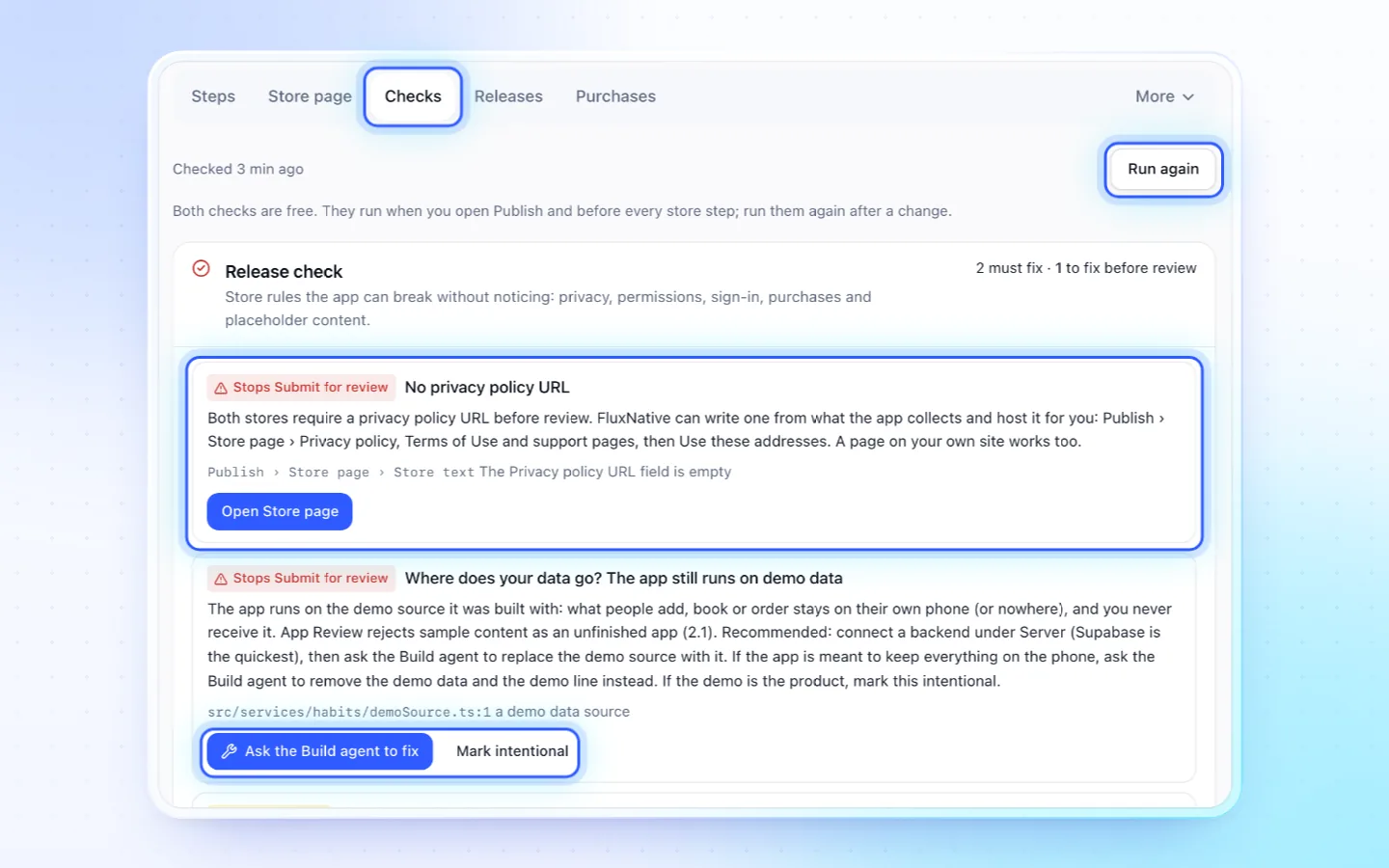
The Release check looks for what stores reject most:
- a working privacy policy URL and an in-app privacy link
- account deletion when people can make an account; a usage string per permission
- Sign in with Apple beside other sign-ins on iOS; App Tracking Transparency with ads
- a reviewer demo account; no demo data, demo paywall or unsent reminders
- placeholder copy or support details, empty screens, a
com.exampleID - purchases on the version, Terms of Use with subscriptions, export compliance, SDK privacy manifests
- Android's target API level, photo and video permissions, Play's closed test
The Security check looks for server keys and plain-HTTP addresses in the source, Supabase tables without row level security, public storage and open Firebase rules.
Each finding says what it stops. Fix it applies a config fix for free, Ask the Build agent to fix starts a chat turn, and Mark intentional needs an owner or admin and a reason. Ask the assistant "what will Apple reject?" to hear the same check.
Links into Play Console
Google doesn't tell FluxNative which app is yours inside Play Console, so Play links open the console's start page until you save the app's address. Open the app in Play Console, copy the address from your browser (it holds /developers/…/app/…), and paste it under This app's address in Play Console on Create the app in Play Console, or paste it to the assistant. Each Play step, App content task and "fix it" link then opens that app's own page; your other apps on the same account open that account's pages.
Related
Did this page help?