Store page
Write the store text with AI, frame screenshots, host privacy and support pages, and send it all from Publish › Store page.
Updated Oct 23, 2026
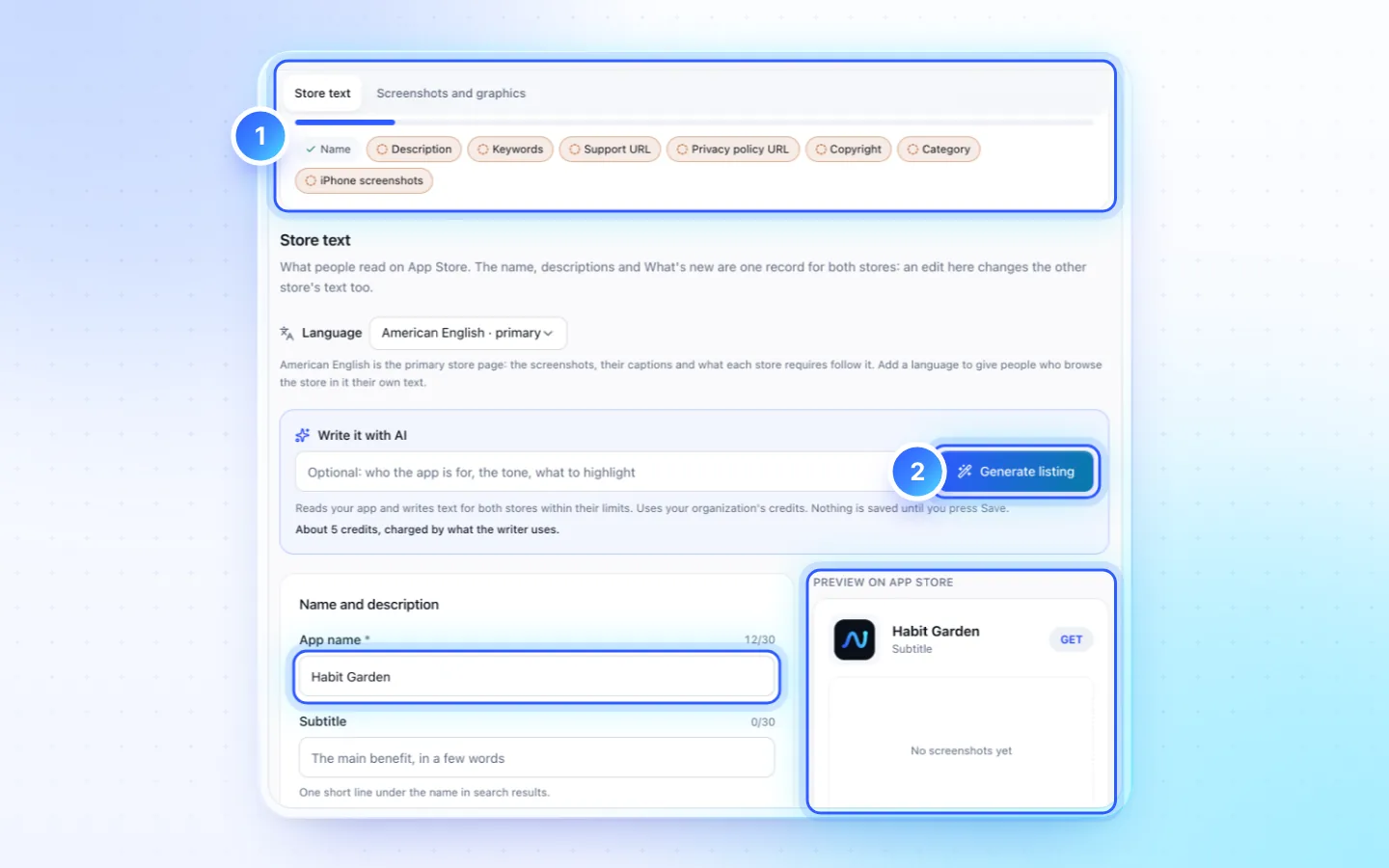
Steps
- Open Publish, pick the store, then Store page. The top card lists what the store still needs.
- Press Generate listing for a first draft of the text, about 5 credits. Edit it, then Save.
- Press Capture from app: your best screens, home first, each in a phone on your brand colour. Over a set, it captures the same screens again, in order. Pick Light or Dark beside it for the app's look. AI captions adds headlines, about 3 credits.
- For Google Play, make the feature graphic with Generate from brand or Design it.
- Press Save and send to App Store or Save and send to Google Play. Nothing is submitted for review.
Text limits
| Field | Limit | Store |
|---|---|---|
| Title (App name) | 30 characters | Both |
| Subtitle | 30 | App Store |
| Short description, also Apple's promotional text | 80 | Google Play; optional on App Store |
| Full description | 4,000 | Both |
| Keywords | 100, commas without spaces | App Store |
| What's new | 4,000; 500 on Google Play | Both, optional |
| Category, copyright, support URL | App Store | |
| Privacy policy URL | Both; on Google Play, in Play Console App content | |
| Contact email | Google Play |
No two apps on the App Store share a name. If another app holds yours, the send says so: change App name and send again.
Image sizes
| Image | Size | Store |
|---|---|---|
| Phone screenshots | 1080 × 1920, 2 to 8 | Google Play |
| iPhone 6.9" screenshots | 1290 × 2796, 1 to 10 | App Store |
| iPad 13" screenshots | 2048 × 2732, 1 to 10, only with Support iPad | App Store |
| Feature graphic | 1024 × 500, PNG or JPEG, no transparency | Google Play |
| Hi-res icon | 512 × 512, from your app icon | Google Play |
Capturing, uploading, captions you type, Generate from brand and Design it are free. AI captions cost about 3 credits, Suggest designs about 4.
Privacy, terms and support pages
Have your own privacy policy page? Paste its link in the store text's Privacy policy URL, or press Use my link on Google Play's Privacy policy task (Steps › App content). No page yet: FluxNative writes them, and your app's landing page puts them online on your own host.
- In Category, links and copyright, fill Contact email, which the pages show. A Copyright line with a name, such as
2026 Acme Inc., names the developer on them too. - Under the store text, open Privacy policy, Terms of Use and support pages and press Write the pages. Read every page, click the text to change it, then Save.
- Press Make a landing page (or Open landing page) and deploy it from its Publish. Each deploy adds the pages at
/privacy,/support,/termsand/delete-account, and the store text's empty links point at them. On Google Play the Data safety form's account deletion link is filled too; paste the privacy link in Play Console (App content › Privacy policy). - Changed a page later? Deploy the landing page again. Gave the landing page its own domain? Once the domain is active, the pages move there and the store text's links to their old address follow by themselves.
- Add the links to the app asks the Build agent to put them in the app's settings, as Apple asks.
Good to know
- The name, descriptions and What's new are written once for both stores. Add a language gives each store language its own text.
- The primary page is English (US) until you open another language and press Make primary, as a Vietnamese app would. Screenshots are captured and captioned in the primary language, and every language's page shows them. Pick the same language as the app's primary language in App Store Connect and its default language in Play Console.
- A coming-soon or error screen in a set is flagged in red: remove it, or finish the screen and capture again. Stores reject unfinished screens.
- New apps start with their initials as the icon. An app made before base 12.12.0 may still have FluxNative's starter icon, which is not sent as the Play icon and is left out of feature graphics: make a logo in App settings first.
- Reviewers open your URLs: placeholders such as example.com or support@example.org are refused.
- Apple takes text changes only while a version is being prepared; Google only after the app's first bundle is on Google Play.
- iPad screenshots come only with Support iPad, off for new apps. Google Play also needs a 512 × 512 icon, made from your app icon.
Related
Did this page help?