AI shopping assistant
The assistant in a Commerce app and on your website: it finds products, reads size charts, adds several items at once, compares, suggests what goes well, helps with orders and remembers if asked. Where it runs per platform, what it needs and how to turn it on.
Updated Oct 29, 2026
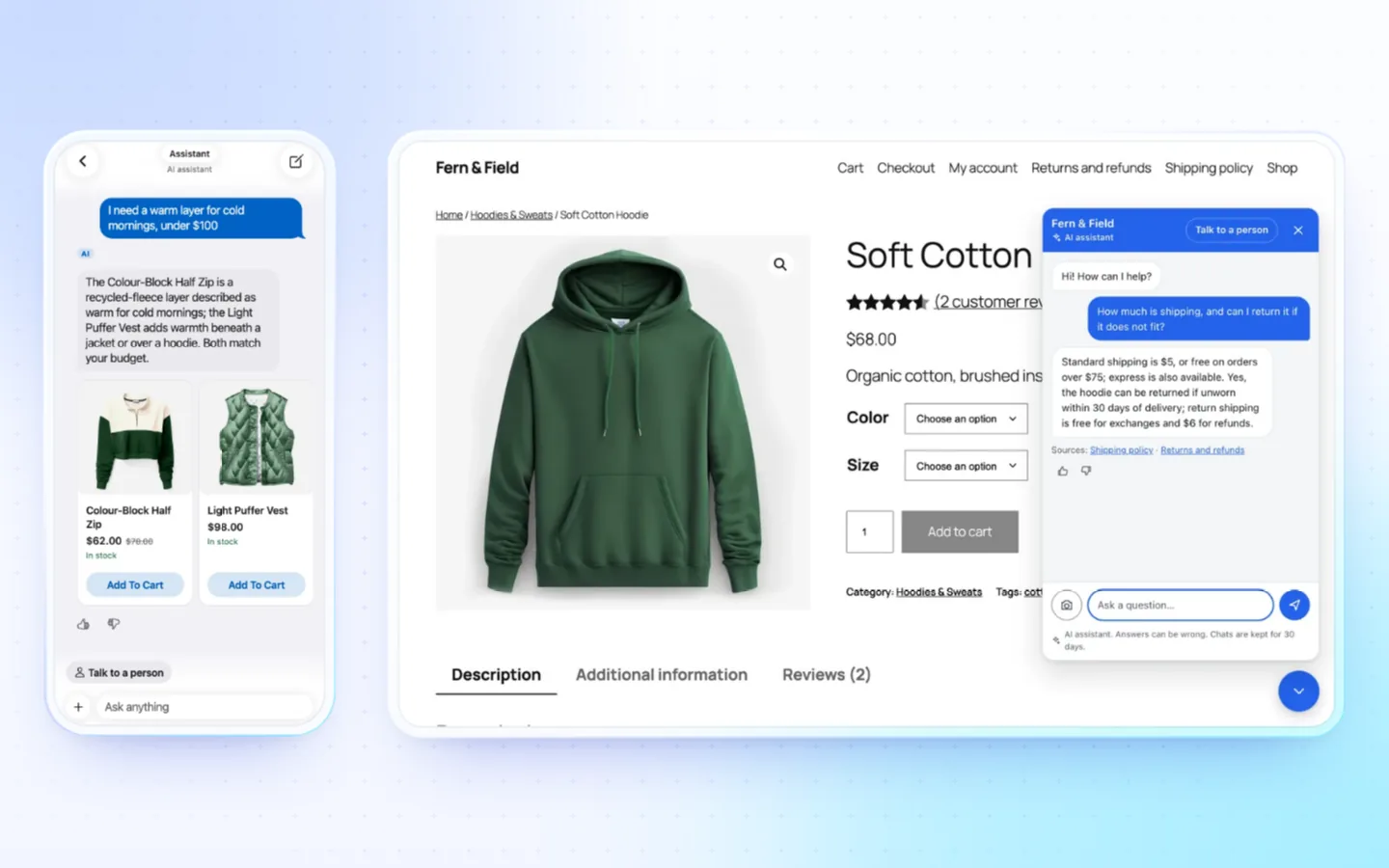
With the FluxNative plugin on your WordPress site, shoppers ask your app, and a chat bubble on your site, in their own words. It answers only from your store: its products, pages, policies and the shopper's own orders.
Find products
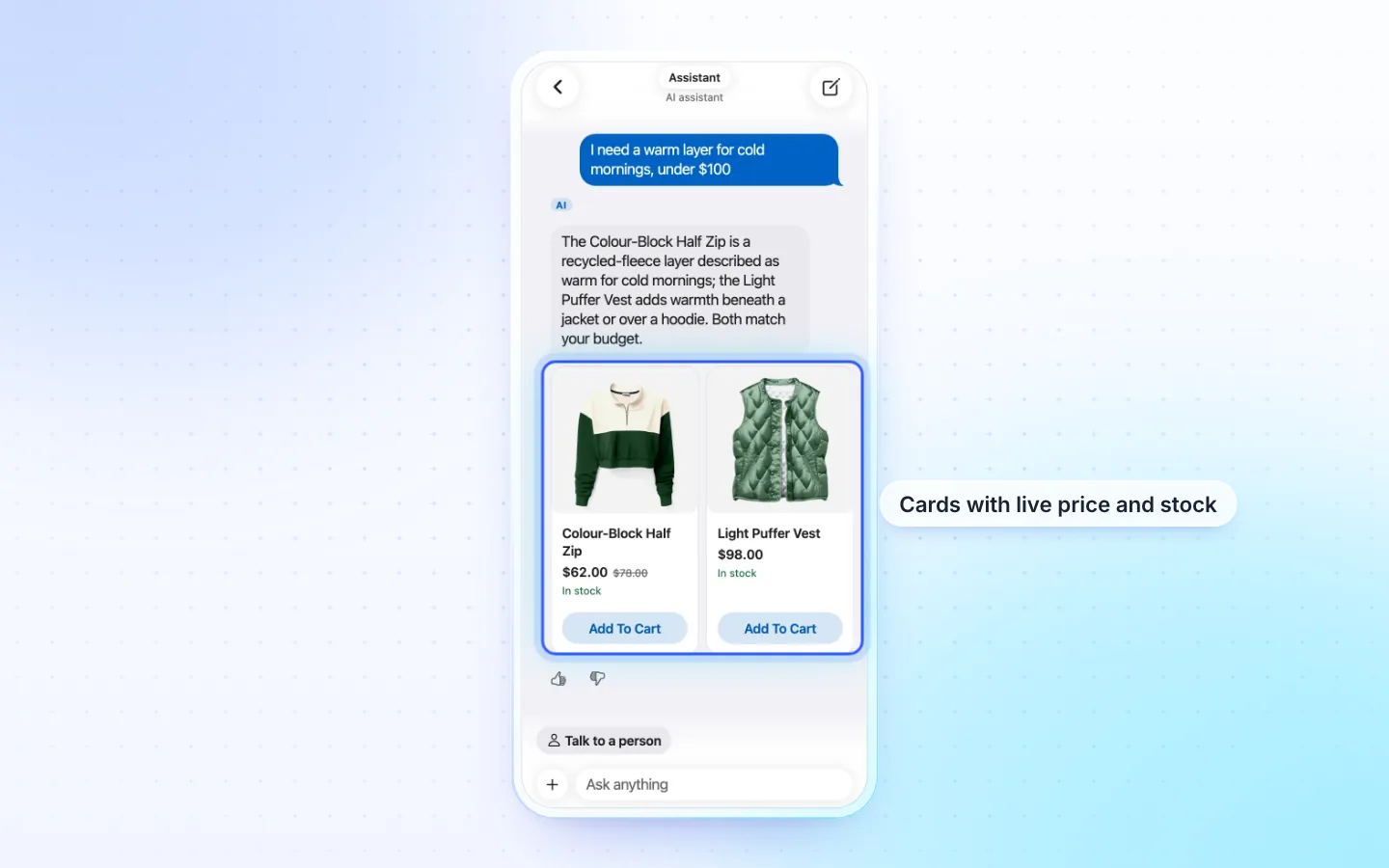
Shoppers say what they need, as they would to a person. It answers with your products as cards with live price and stock, and Add To Cart, or Choose options where a product has options.
Sizes from your size chart
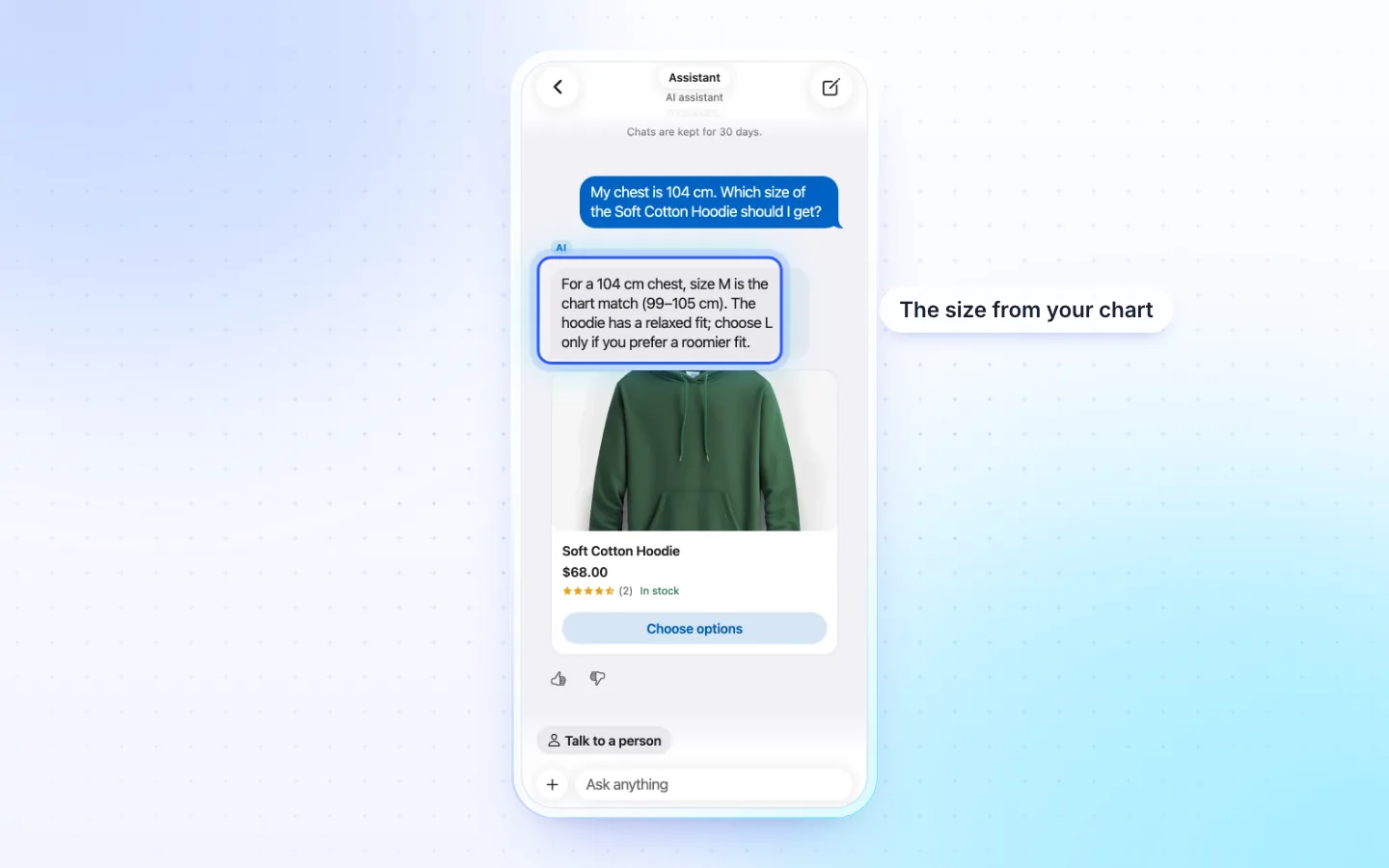
Asked which size fits, it reads the product's own size chart and names the size, with what the chart says.
Several items at once
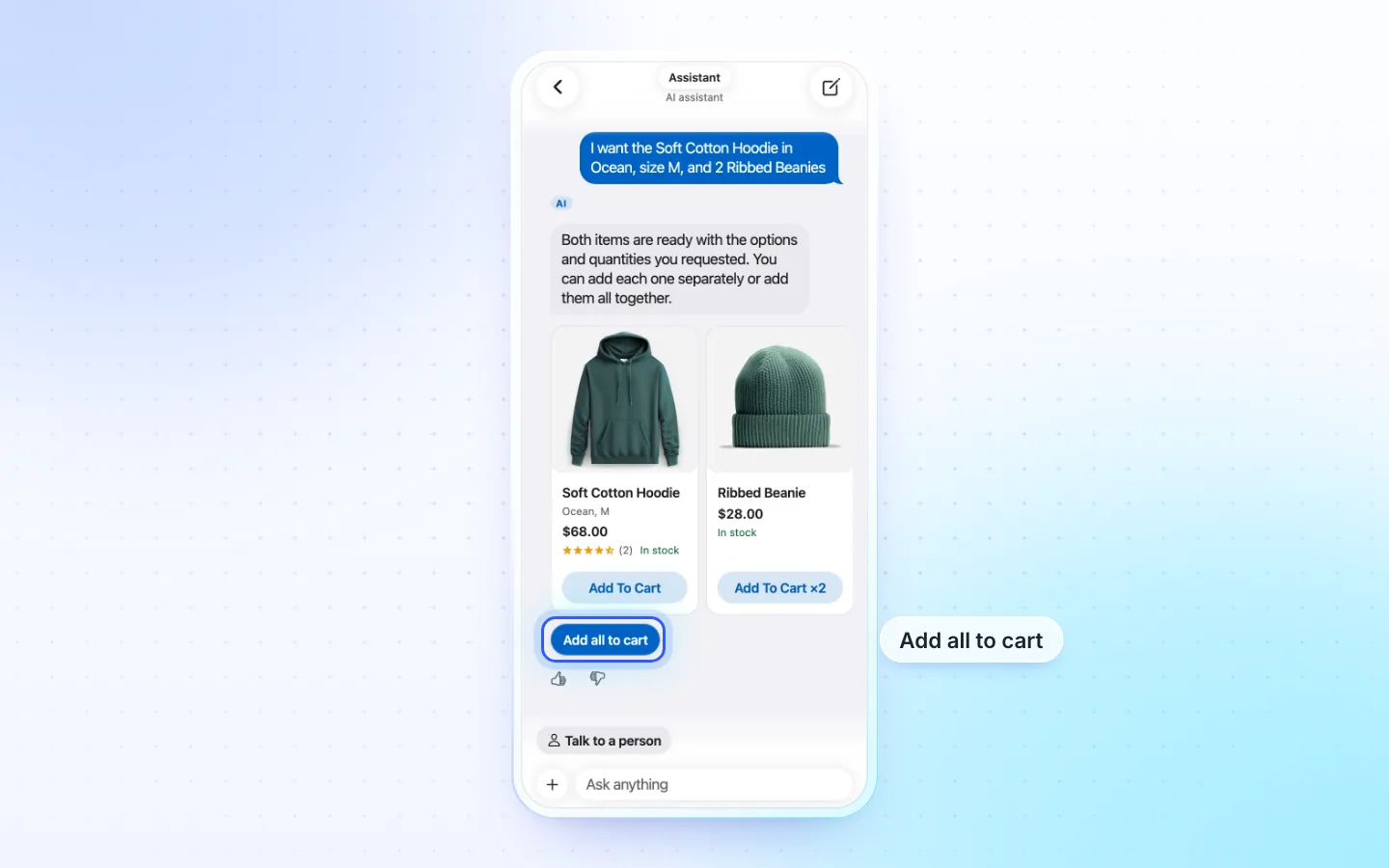
One message can ask for several things, each with its colour, size and quantity. Each comes as a card with its options set, and Add all to cart adds them together.
Compare
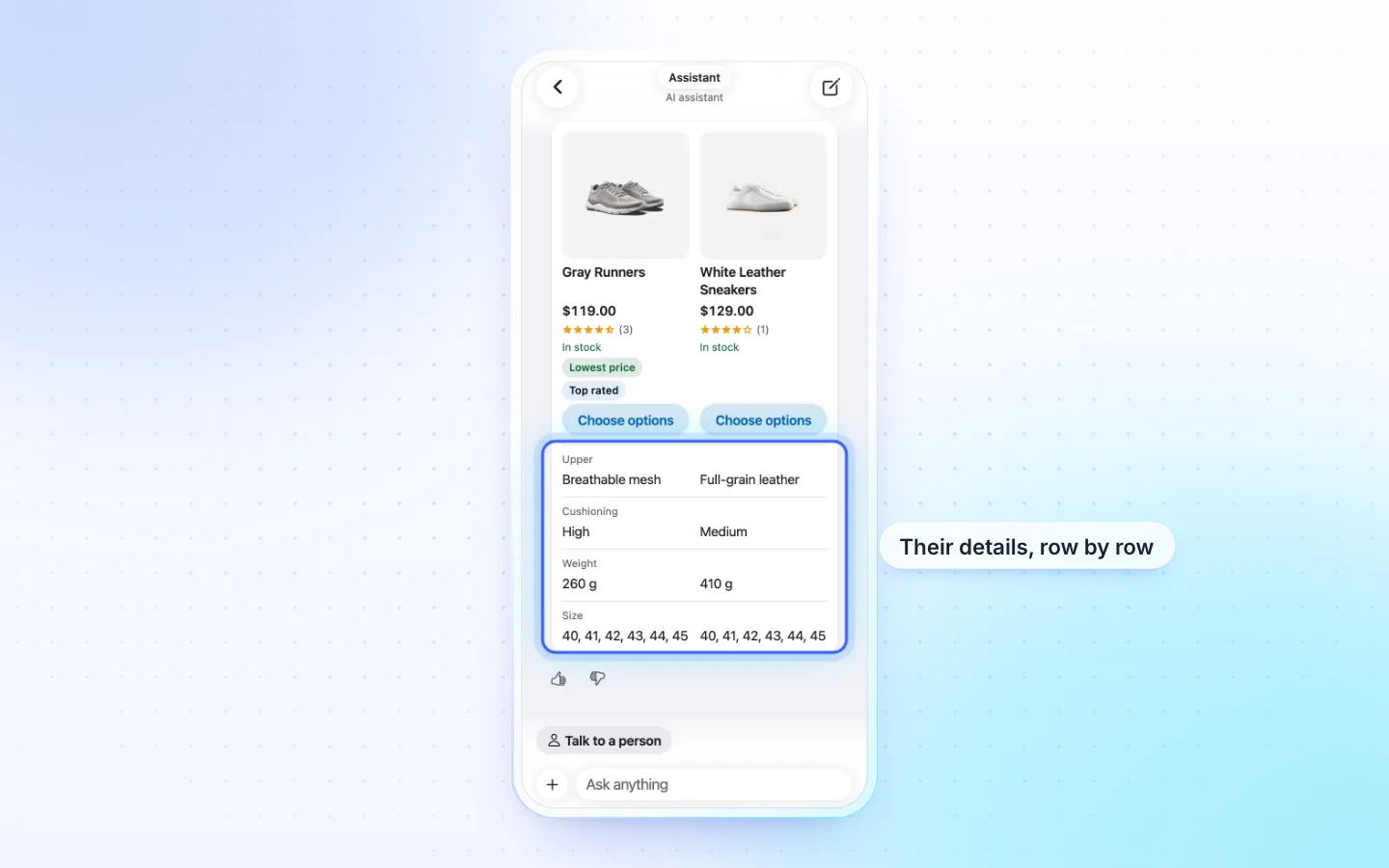
Asked to compare two or three products, it puts them side by side: price, rating and stock, then their details row by row.
Goes well with it
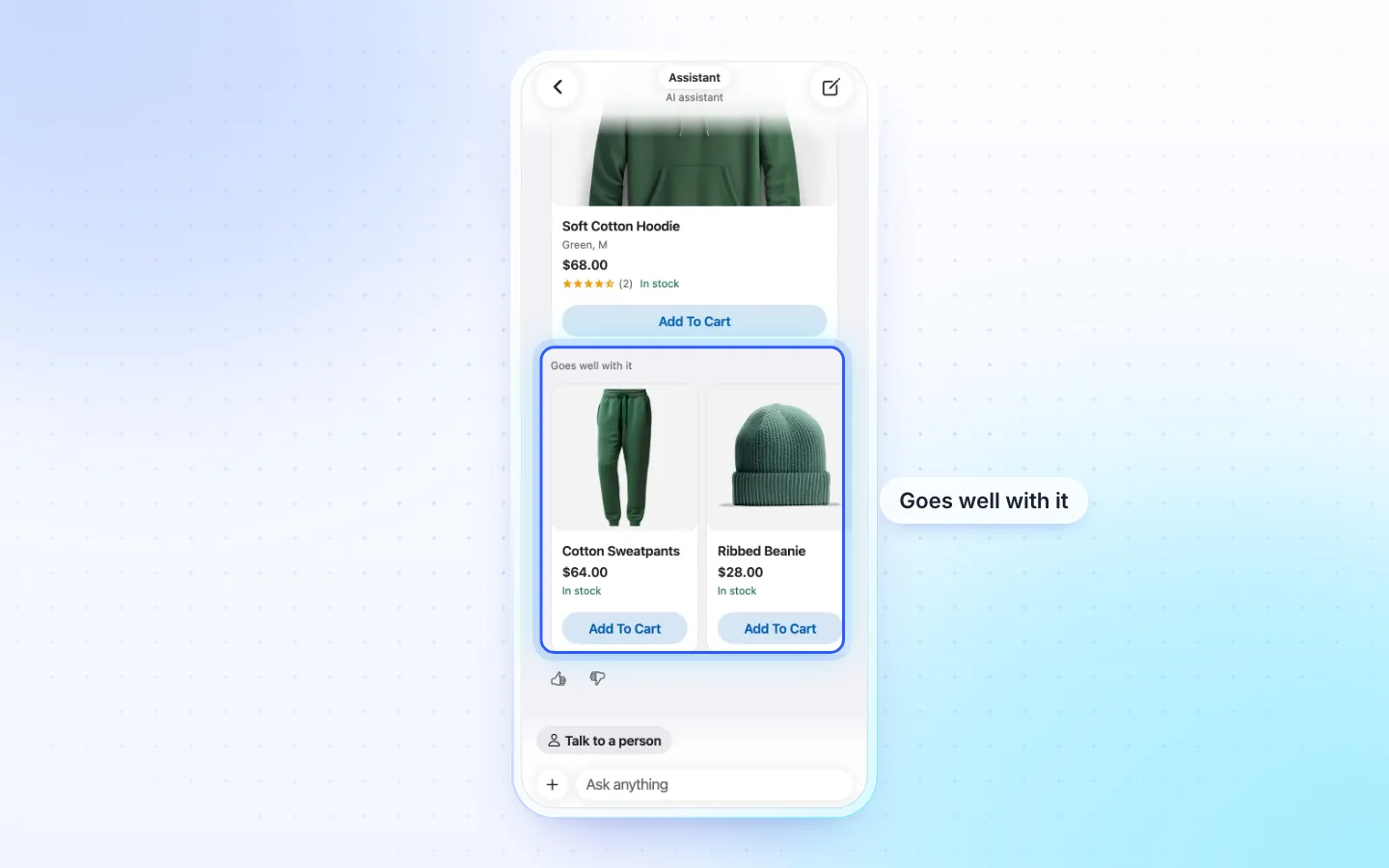
After an add to cart, it suggests your cross-sells first, then what other orders bought with it.
Orders, cancel and refunds
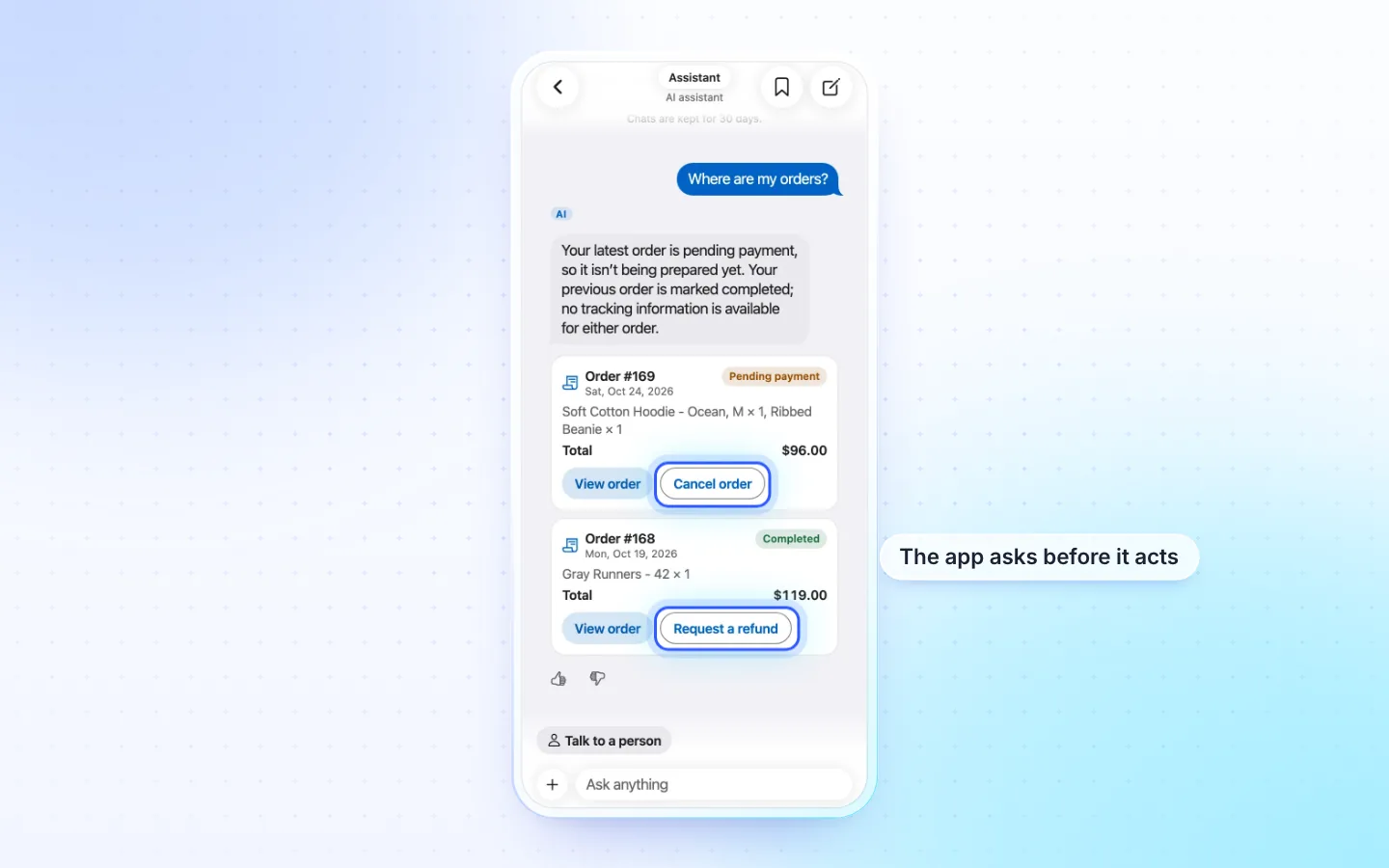
A signed-in shopper asks about their orders and gets each with its status, items and total, and View order. Cancel order and Request a refund open the app's own confirm, by your store's rules. The AI never does either itself.
Memory, if the shopper turns it on
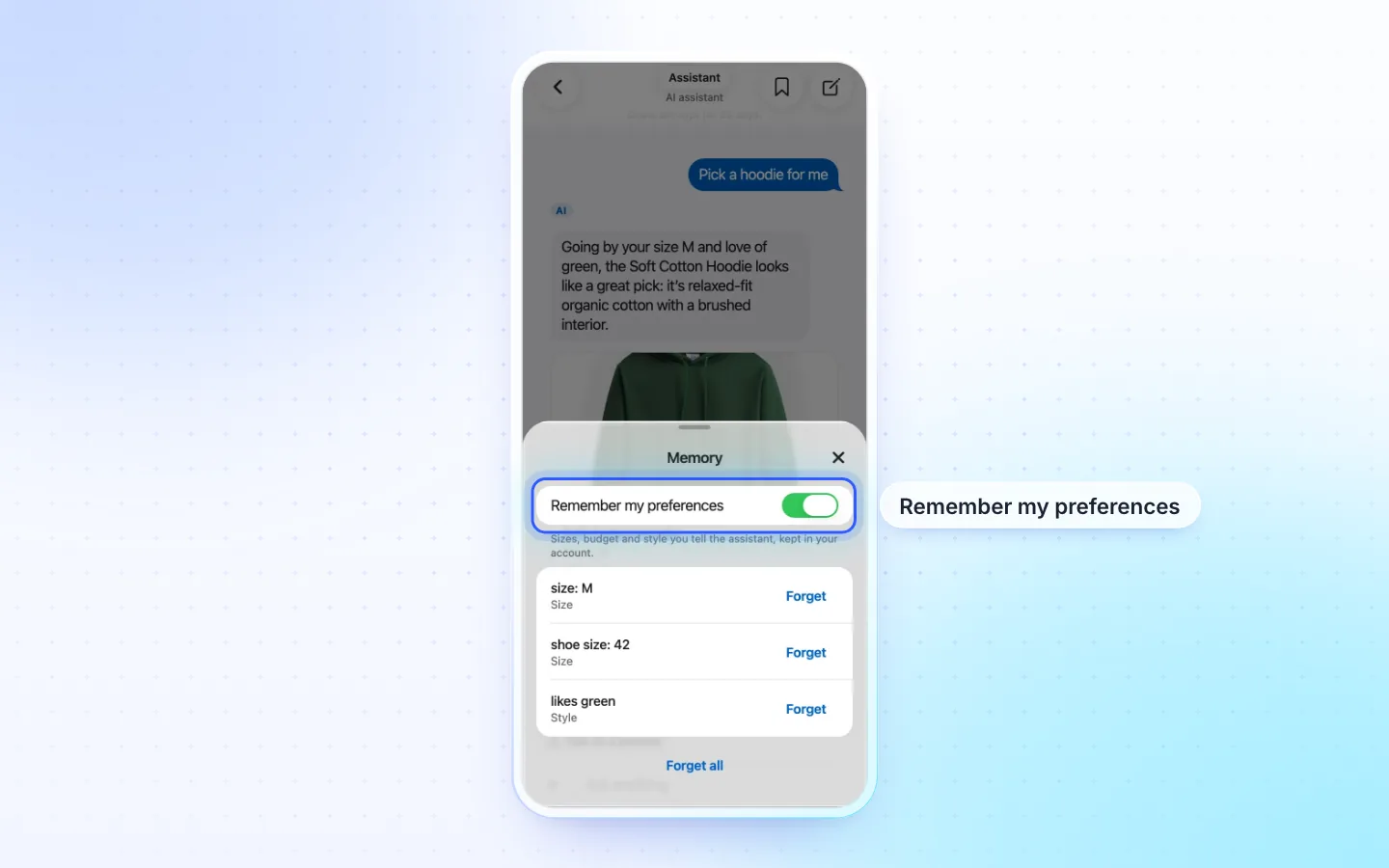
Off until a signed-in shopper turns on Remember my preferences. Then it keeps the sizes, budget and style they mention, in their account on your site. They see each one, Forget it, or Forget all.
Steps while it works
While it searches or reads an order, the chat says what it is doing, such as Searching products…, so a shopper never waits on a blank screen.
Photo search
The + beside the message box takes a photo: Take photo or Choose from library (a file on the web). The answer shows similar products from your store, never claiming the same item. The photo is made small on the phone, sent once and not kept; 10 a visitor a day. Photos of people or documents are refused. The chat bubble on your site has the same button.
Search by meaning
It finds products by what they are for, not only by their words. On FluxNative credits, your catalog is indexed once; your own AI key needs a Search model, else it searches by keyword. Called Search by intent in the plugin.
Talk to a person
Talk to a person, above the message box in the pictures above, hands the chat to you with the question already written: WhatsApp, e-mail or another way you list (up to 8, in your order), or Message the store in the app. On a marketplace it can message the seller, and it knows each seller's shipping time.
On your website
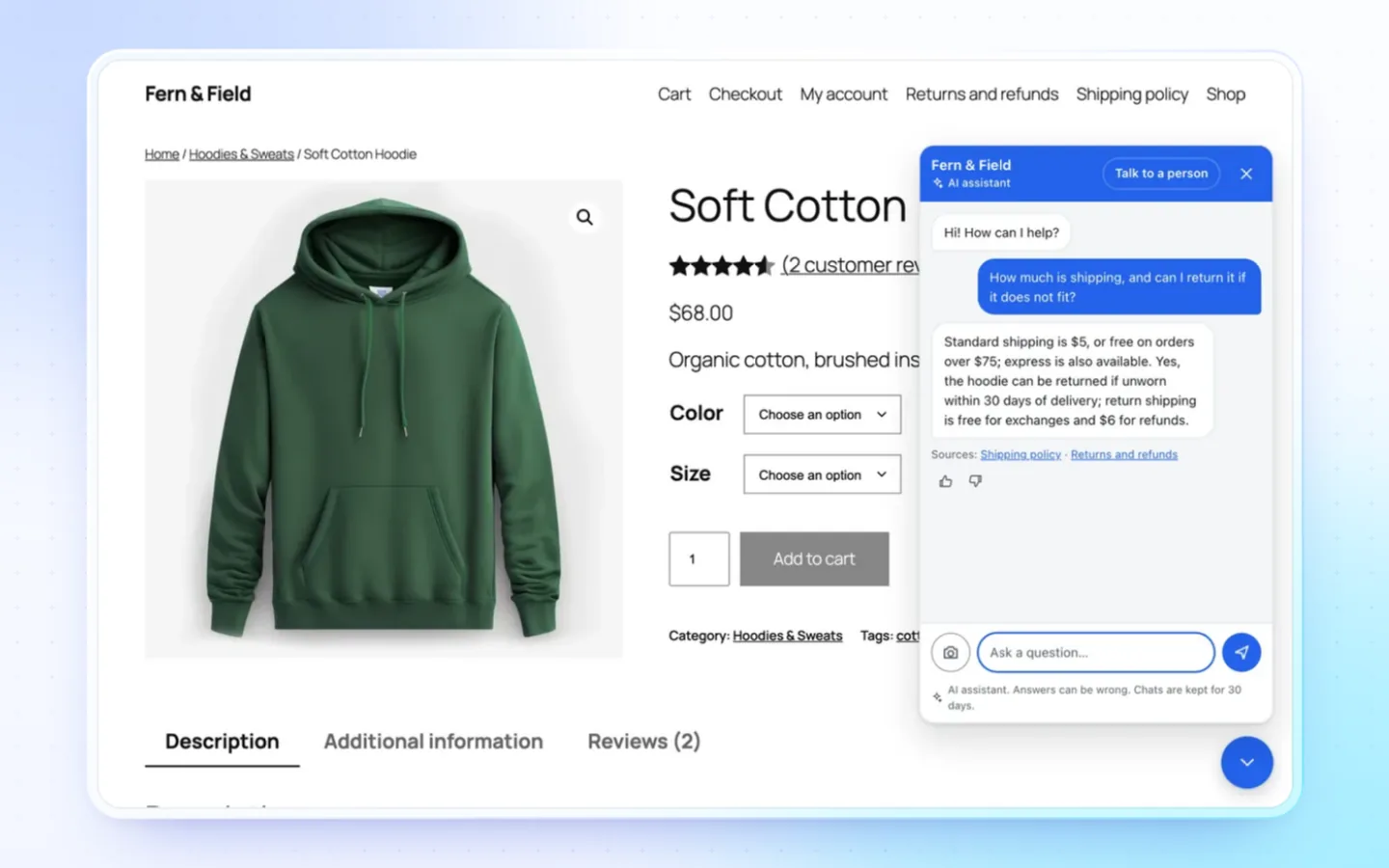
The same assistant as a chat bubble on your WordPress site, on the pages you pick, with the sources it answered from. Add to cart in the bubble fills your site's own cart.
Insights
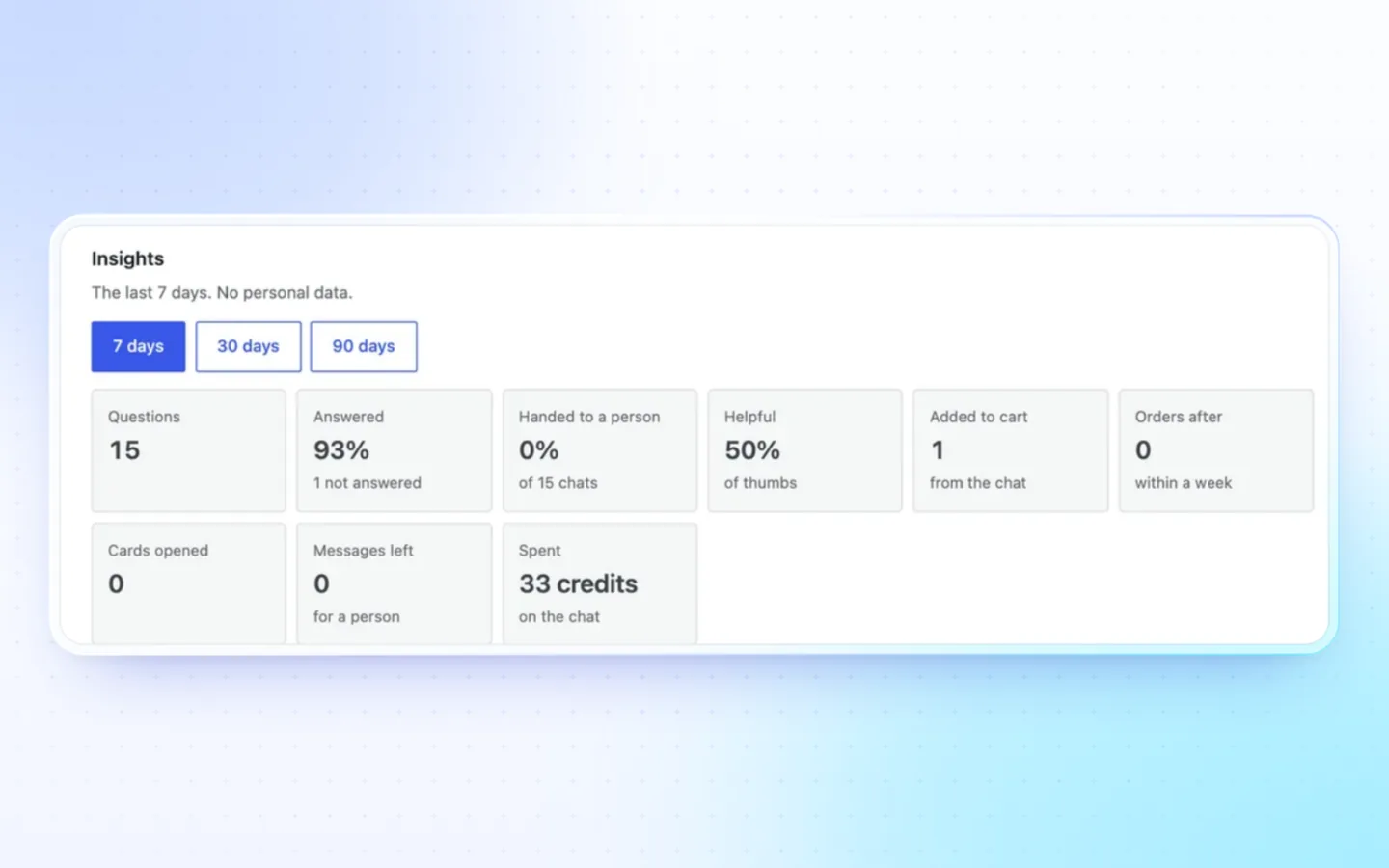
In WP admin, FluxNative › AI chat › Activity shows the last 7, 30 or 90 days, with no personal data: questions, how many it answered, chats handed to a person, thumbs up, adds to cart from the chat, orders within a week, cards opened, messages left and credits spent. Turn on Questions not answered to list them there.
Where it runs
| Platform | App type | The assistant |
|---|---|---|
| WooCommerce | Store app | Everything on this page |
| WooCommerce | Marketplace app | Finds products, knows each seller's shipping time and hands chats to sellers |
| WooCommerce | Seller app | Its own, for the seller's sales |
| WooCommerce | Driver app | None |
| Shopify | Store app | None in the app. A chat bubble on your store's website with the FluxNative Shopify app, where Your store offers Install in Shopify: without memory, order actions, search by meaning or Goes well with it |
| WordPress | Directory app | Its own: finds places, shows each time slot's free places and books them |
| WordPress | News app | Its own, for readers: answers from your posts with their links |
The chat bubble runs on any WordPress site with the FluxNative plugin, whatever its app type.
What it needs
- The FluxNative plugin on your WordPress site. FluxNative for WordPress. Not on wordpress.org yet: download the zip, then in WP admin choose Plugins › Add New › Upload Plugin.
- FluxNative credits from your FluxNative account, or your own AI key (OpenAI, Anthropic, Google Gemini, OpenRouter or an OpenAI-compatible service), billed by your provider. A Shopify store's chat runs on credits only.
- On credits: each answer uses a few credits. Search by meaning indexes your products once for 1 credit per 25, up to 2,000 products on Free and 25,000 on a paid plan; searches are then free.
- Signed-in shoppers through the plugin, for orders and memory.
Turn it on
- Install and activate the FluxNative plugin.
- In WP admin, open FluxNative › AI chat › Setup.
- Under Pay with, choose FluxNative credits, then Use FluxNative credits and Approve on FluxNative while signed in to your account. Or choose My own AI key, pick the Provider, paste the API key and choose Test connection.
- Under Features, keep AI chat and Search by intent on. Tick Site chat bubble for your website. Choose Save changes.
- On Site chat, set where the bubble shows, the ways under Talk to a person, and Options: Photo search (on), Memory (Shoppers turn it on, On, shoppers can turn it off or Off). Chat look sets its look.
- Open your app: the assistant shows while your site answers it.
- Limits sets calls per person, per visitor and per minute, and a monthly cap for your own key. On credits, the site's cap is in FluxNative under Profile › Connected sites.
- On Shopify, the FluxNative Shopify app's AI chat page sets up the bubble.
Related
FluxNative Commerce · Plugins by platform · WooCommerce: Store app
Did this page help?