Shopify store app
A Commerce app for any Shopify store, through the Storefront API: collections, products, cart and Shopify's own checkout. What it has, how it connects and what it needs.
Updated Oct 24, 2026
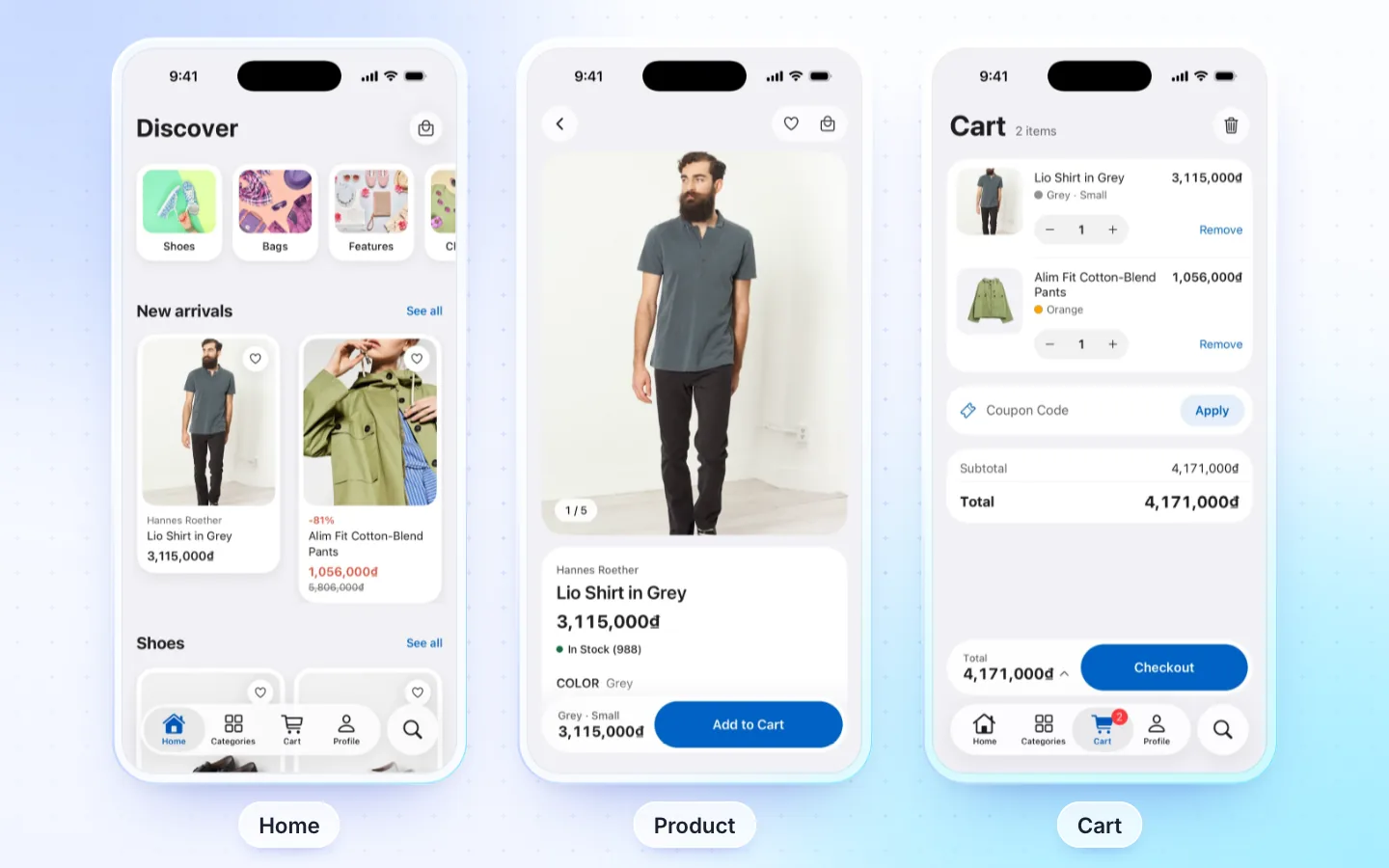
What it has
- Home: banners, collection tiles and product rows.
- Catalog: collections and products live from Shopify, search, and a wishlist on the phone.
- Product page: photos, options and variants, stock, and star ratings from your reviews app.
- Cart: discount codes, then Shopify's own checkout for every payment.
- Account: sign in, order history and re-order.
Product types
Every Shopify product, with its options and variants.
Required plugins
| Plugin | Needed | What for |
|---|---|---|
| Shopify | Required | Products, collections, cart and checkout |
| Storefront token | Required | From Shopify's Headless channel: create a storefront, then copy its public access token. Never an Admin token |
Once Your store offers Install in Shopify, the FluxNative app makes the token for you: see Connect your store.
Connect your store
A Shopify store connects with a Storefront access token. Where Your store shows Recommended: the FluxNative app, the app makes it for you instead.
With a Storefront token
- In your Shopify admin, add the Headless sales channel from the Shopify App Store. It is free.
- In Headless, choose Create storefront, then copy the Public access token from its Storefront API settings.
- In the Commerce dialog's Start from the template › Shopify store, or in Server › Backend › Your store, enter your
myshopify.comaddress and paste the token in Storefront access token. - Make your products and collections available on that storefront's channel: only those show in the app.
With the FluxNative app
- Enter your
myshopify.comaddress, as above. - Under Recommended: the FluxNative app, choose Install in Shopify and approve it in your Shopify admin.
- In the app, choose Continue as to link it. It makes the Storefront token, so there is nothing to paste.
- Open the FluxNative app in Shopify and tap Make all available: only products and collections on the FluxNative sales channel show in the app.
- Admin tokens are refused. The store check names any permission a token lacks: add it to the token in the Headless channel.
- The FluxNative app isn't in the Shopify App Store: install it from Your store. It is free.
Supported plugins
- Product review apps that fill Shopify's product rating fields (
reviews.rating): stars on products. - New customer accounts, with the FluxNative app: customers sign in on your store's page with what you turn on in Shopify (e-mail code, Shop, Google, Facebook). Classic accounts and a Headless token sign in with e-mail and password.
- For an iOS app, keep Google and Facebook off in Shopify: Shopify has no Sign in with Apple yet, so Apple may reject the app (App Store guideline 4.8). An Android-only app can use them.
Not supported
- A coupon list (a typed discount code works), filters by brand, tag, attribute or price, and SKU search.
- Sign in with Apple, order cancel or refund, deleting the account, and writing reviews.
- The AI assistant and messages: they run on the WordPress plugin.
Related
FluxNative Commerce · Create a Commerce app · Connect your store and website
Did this page help?